
When people think about becoming an entrepreneur, they tend to only see the glamorous aspects, like seeing your dream come to life and being your own boss. Until you’re in the trenches it’s hard to see that small business owners wear many hats. You’re responsible for the day-to-day running of your business – and that’s after you come up with your business idea! You’re a marketing ninja and your own public relations department. There’s a good chance you’re doing your own accounting, updating your website, and running the social media channels for your company.
Thankfully, there are tools that can help. An absolute must-have, in my opinion, is a Canva Pro account. Canva for small businesses is an absolute game-changer.
What is Canva?
Canva is a powerful, affordable online design software. Small business owners love Canva for its ease of use and thousands of template options.
With Canva, you can easily create beautiful designs and documents in minutes, without having to download bulky programs – and without the learning curve!
What is Canva Used For?
You can use Canva for basically anything you can use Photoshop for, with the exception of strong photo editing. You can design flyers, social media images, presentations, and logos with just a few clicks using Canva’s drag-and-drop software.
Canva offers templates for everything, and editing them is as simple as updating them with your brand’s fonts and colors. Canva even has a “Brand Kit” section where you can add your logo(s) and colors, and they’ll be saved to your account. Any time you want to use them, they’re right there with all the other editing tools.
Canva Pro vs Free Canva
There is a free Canva option, but for the purpose of this post, I’m not focusing on it. Free Canva is great if you want to try it out to see if you like what they offer, but I highly recommend small business owners invest in Canva Pro. Canva Pro offers all of the bells and whistles described below and will fully satisfy all of your design needs.
How Much Is Canva Pro?
Canva Pro costs $12.95 per month or you can subscribe for the yearly rate of $119.40.
For a limited time, you can try Canva Pro FREE for 30 Days!
7 Ways to Use Canva for Small Businesses
Free Stock Photos
In addition to thousands of free shapes, icons, and fonts, you will find Canva has millions of photos right in your canvas/editing dashboard. As of April 6, 2020, ALL stock images are FREE for Canva Pro users! Considering how much stock images can cost – and that Canva used to charge $1 each for certain images – this is a huge saving and just one more reason why Canva for small business is a MUST!
Having stock photos right in your dashboard adds to Canva’s ease of use. Whether you need stock images for your website or blog posts, or whatever design project or social media post you’re putting together, dashboard access to millions of free stock photos is awesome!
How to Design a Brand Kit in Canva
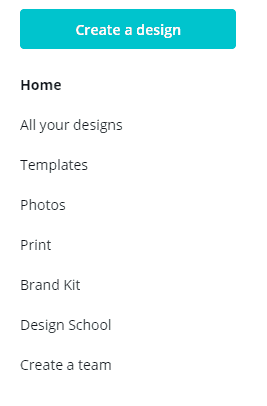
Choose “Brand Kit” at Canva.com
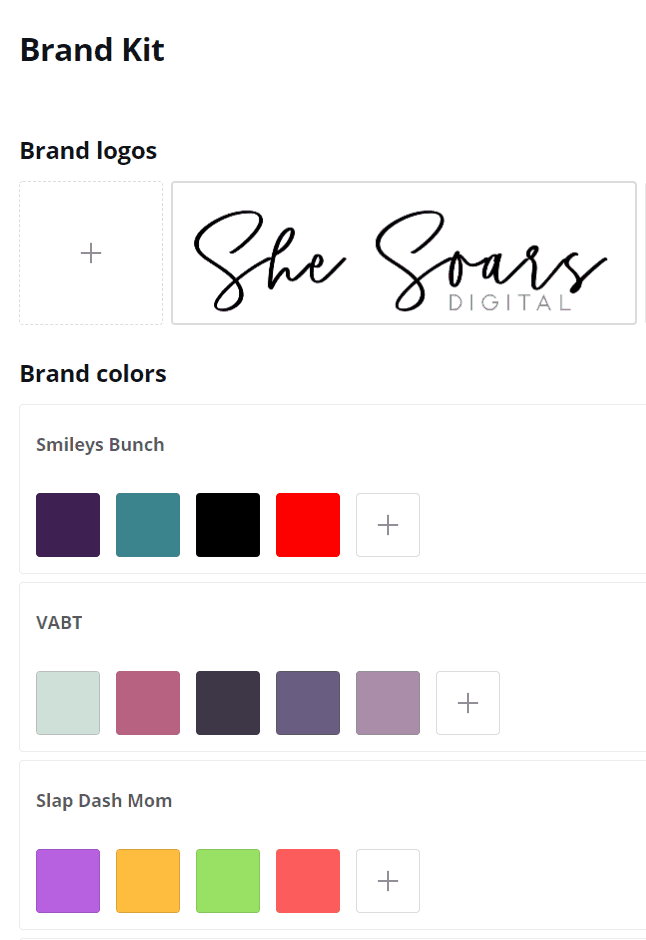
Upload your logo.
The first step to making Canva yours is to design your Brand Kit. This will make future edits simpler; rather than having to upload your logo each time, it will be ready for you to use on every project.
On the main Canva.com page, choose “Brand Kit”. Upload your logos, then choose your color. You can have several brands in one kit.
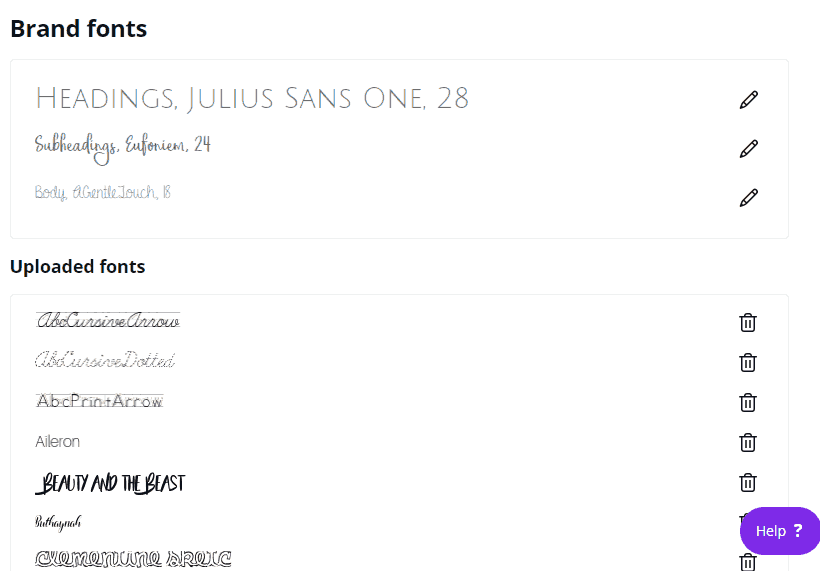
Next, upload your custom fonts or choose ones you’ll use frequently. You can upload several of your own fonts, and change them at any time. Like a logo, it’s important to establish your brand fonts as you want anything you create on behalf of your business to be cohesive. If Canva doesn’t already have fonts you love, you can find free fonts at dafont.com. One of my favorite places to browse and buy new fonts is Creative Market.
How to Make a Social Media Image in Canva Pro

You can make your social media images using one of Canva’s templates or you can start from scratch, but I find that using a template cuts my design time by at least 75%.
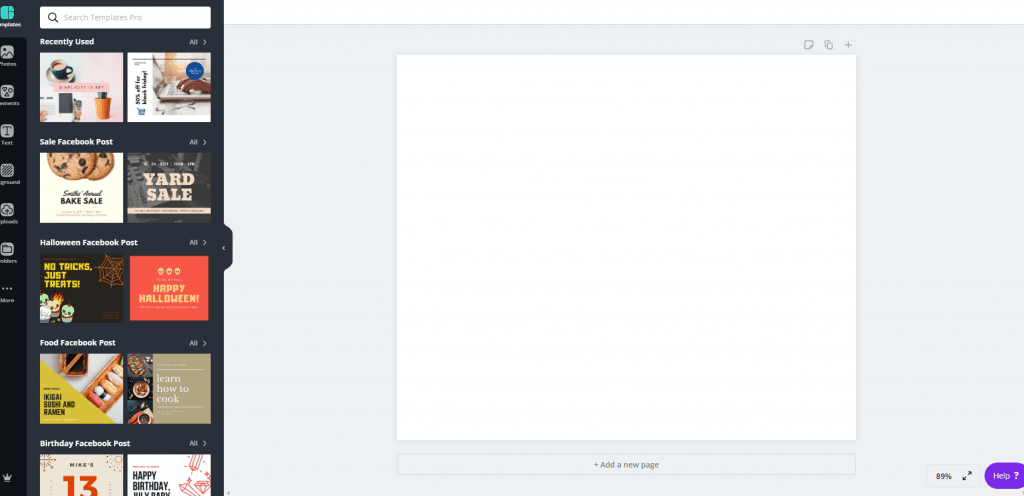
Creating and saving your own templates is another option. If you love how an image looks and you want to use it as a template, just make a copy and edit the copy for future projects.
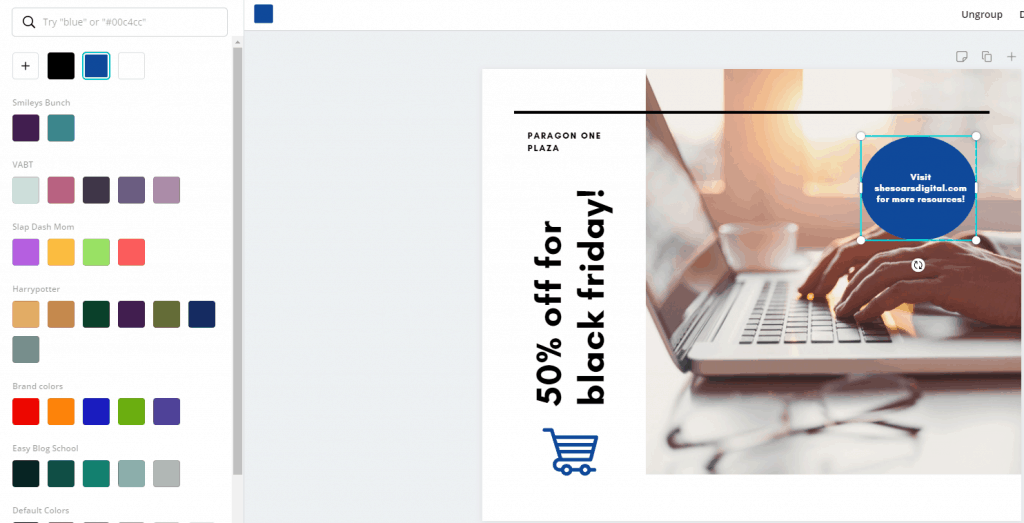
Any element that is clickable is able to be moved or edited. You can replace the stock photos with your own, or with other stock photos. Change the colors to your brand colors (see why it’s important to set up your Brand Kit?), and change the fonts to yours as well.
Next, add icons to make the image unique rather than looking like it came from a template. The last thing you want is for your images to look like everyone else’s!
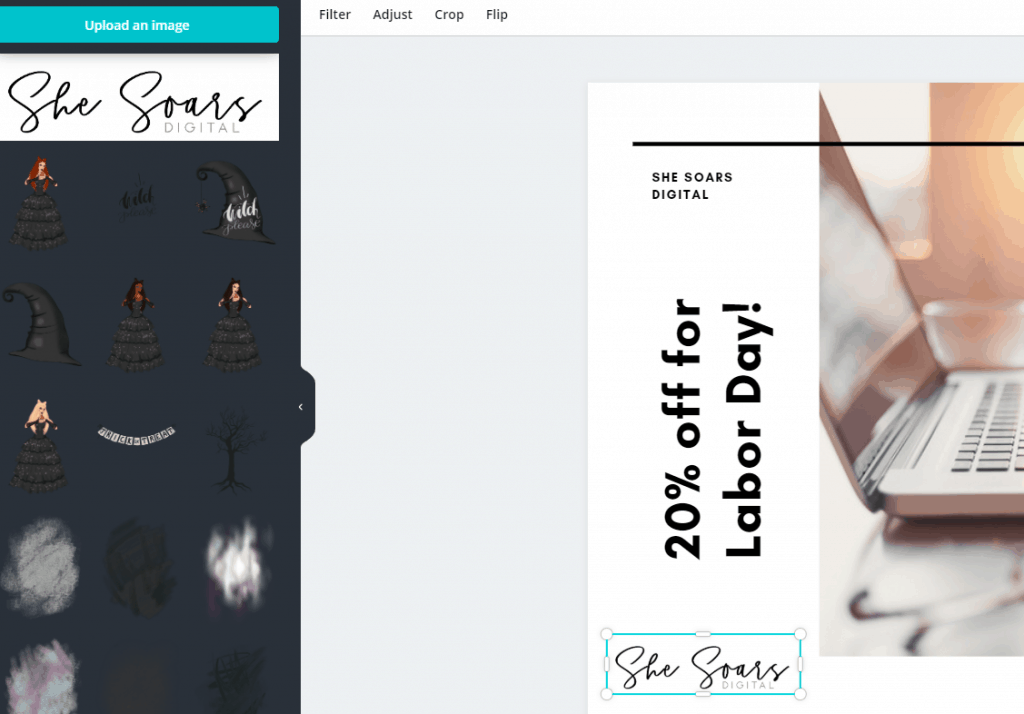
Once you’ve designed your social media images, you’ll want to make sure you add your logo or watermark. You can change the transparency/gradient if you’re wanting to use your logo as an overlay.
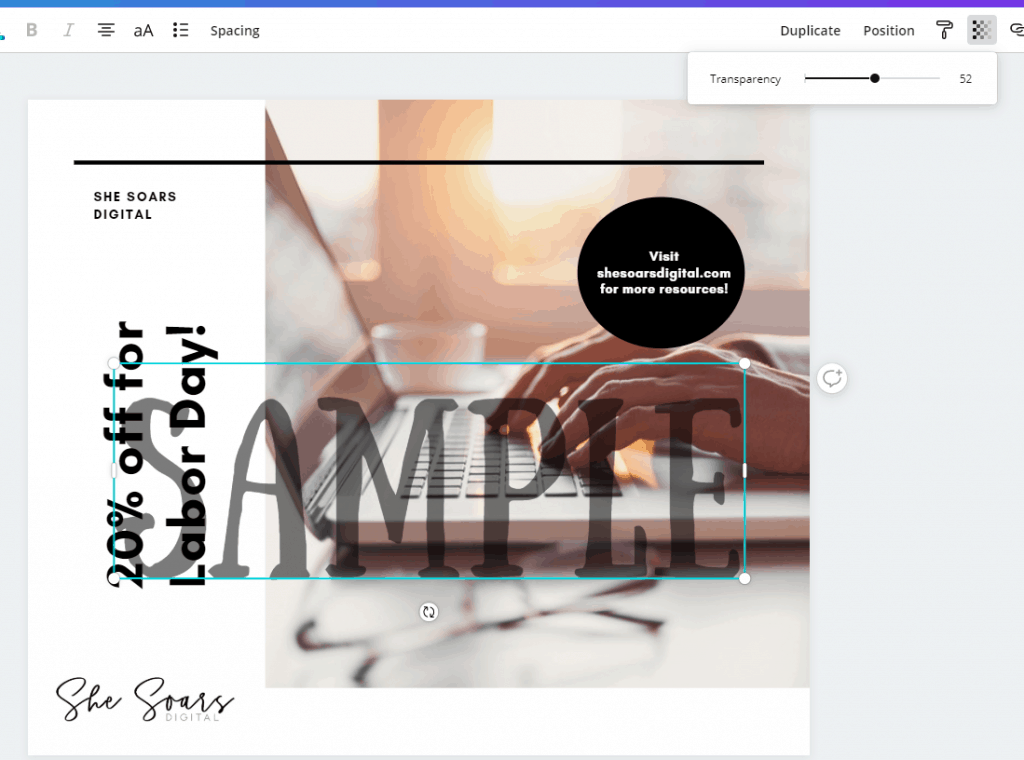
Easily change the transparency amount in the top right corner. You can also move items “forward” or “backward” if you want to stack them. You can change your watermark color just as you would any other text on your design, and you can use the circle arrows underneath to change the direction of the watermark.

Once your image looks good, save it as a PNG, GIF, PDF, or JPG (depending on the project). You can select ‘transparent background’ or ‘compress file’ if you’d like, but keep in mind that compressing isn’t recommended if you’re going to be printing your project.
Photo Background Erasing in Canva

Canva recently released an awesome tool that makes Canva Pro that much better of an investment for small business owners. They now offer free photo background erasing!
Let’s say you have a picture like this:

There’s nothing wrong with this photo. It’s a pretty cute picture of a baby! But let’s say you want to keep the baby and remove the hay. Doing so is SUPER easy in Canva Pro!

With just the click of a button, you can remove the background from any image – whether it’s a Canva stock photo or a photo you upload.
To use Canva’s background eraser, just click on the photo you want to edit. Then click on the “Effects” button that appears and “Background Eraser.” Canva will automatically get to work.
Just a note: Some photos are better equipped for a tool like this than others. In my example above, the baby kind of blends into the hay and Canva had a hard time distinguishing between the hay and the baby’s feet.
One-Click Resizing in Canva
One of the tools you’ll likely find most useful is Canva’s one-click resizing option. Literally, with the click of a button, you can resize the image you designed for Instagram so that it’s the right size for Facebook or whatever else you’ll need it for. You can resize your image at this point, before downloading, and you can also publish to social media directly from Canva – though I recommend posting from social media platforms themselves when possible, not from Canva or any other site.

Once you choose your resizing options, Canva will make a copy and resize your image. You can then edit it more if you’d like, but these changes will not be made globally so be sure you’re finished editing before you resize.
How to Create a Flyer in Canva
Do you remember back in the good old days how pretty much the only software that came with computers was one that let you design flyers and invitations? Well, sadly, times have changed and that’s no longer the norm. Frequently, I see people designing flyers in Microsoft Word, which is actually fairly difficult to do. It’s time to save yourself time and frustration (and money if you’re paying a designer), by taking the time to learn how to create a flyer in Canva.
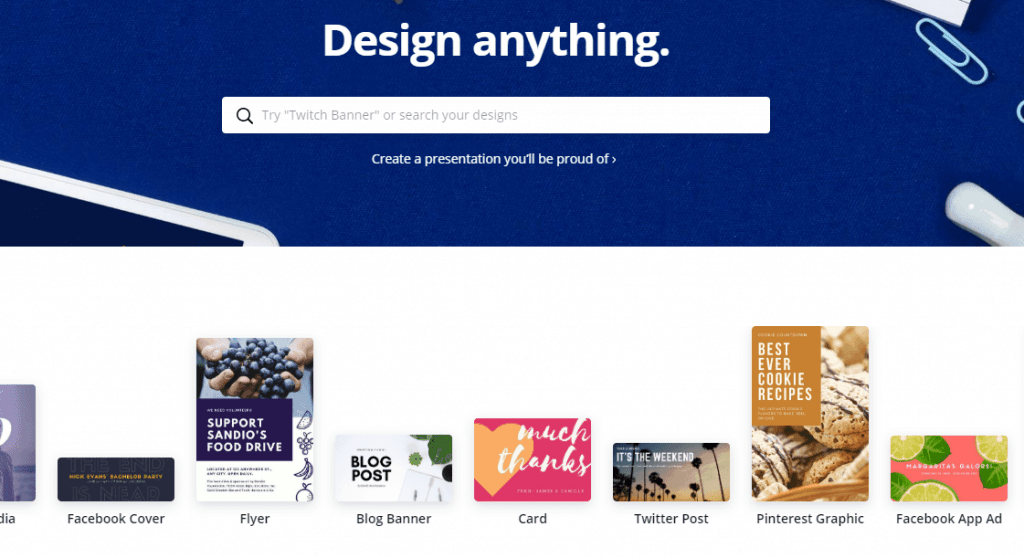
Log into your account and on the front page of Canva, if you scroll to the right a bit, you’ll see even more options for designing! Facebook cover, blog banner, Pinterest graphic, and yes, even a Flyer option!

Select the Flyer option and choose a template. Remember, you can change each element of the flyer. So if you like the idea or layout of a flyer but don’t care for the colors or images, choose it anyway. You can edit it until it’s perfect.
Since you should have already created your Brand Kit, updating any of the Flyer templates should be a breeze! Along with your fonts, colors, and logo, you can use Canva’s free stock images to create unique advertising materials in just a few minutes.
Read: 10 Easy Ways to Support Small Businesses
Canva Professional Resume Design
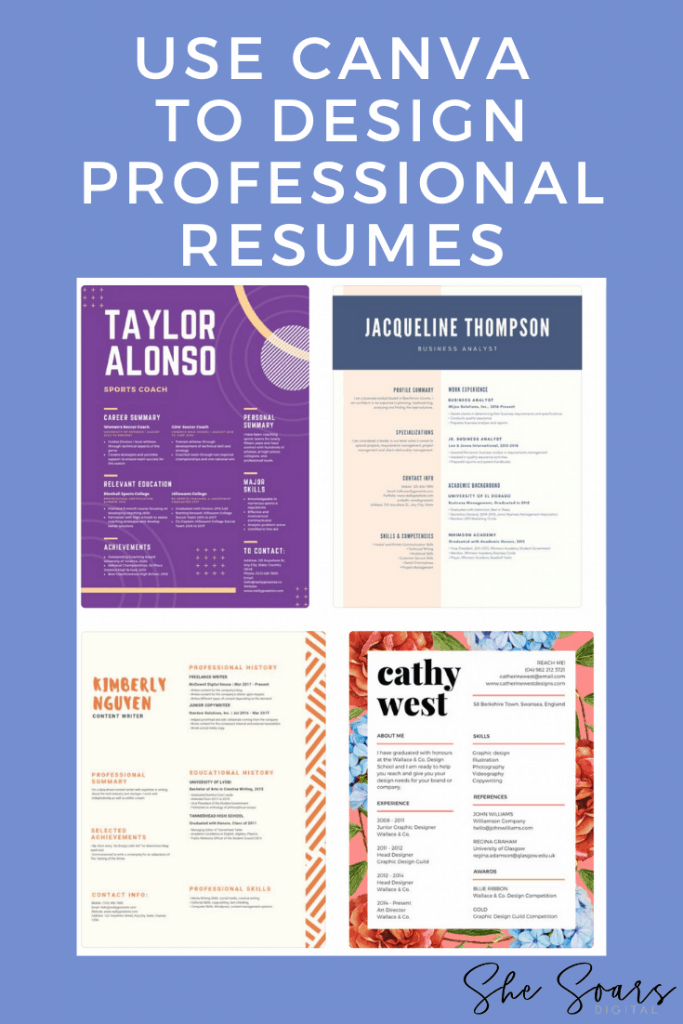
I frequently see people online requesting help designing resumes. While I’ve purchased a few resume templates from Etsy, Canva should be a go-to source for resume design because they have a vast collection of templates. Whether you’re looking for a simple resume template or something with a little more flair, I’m certain you’ll find something that’ll work… and it’ll be included in the cost of your Canva Pro membership!
Learn More About Canva for Small Businesses

This post will get you started on using Canva for your small business, but your very best resource is going to be Canva’s free Design School. This means we’ve found far more than 7 ways to use Canva as a small business owner, but more is better… right?
In Canva’s Design School, you will learn:
- Design Basics
- How to Create Your Brand Kid
- Social Media Mastery
- How to Use Folders
- Publishing Fundamentals
- and more!

But wait, there’s more! Scroll to the bottom of any page on Canva and you’ll find even more features and resources, including:
- Color Wheel
- Palette Generator
- Logo Maker
- Font Combinations
- Photo Editor
- Design Size Guide
- and more!
Even More Canva Tutorials, Courses, and Resources
If you’re serious about using Canva, you’ll find quite a few Canva tutorials, courses and, resources online. Personally, my favorite source for this type of content is Simplifying DIY Design. Cara has a ton of great tools that will make sure your Canva game is on point.
The best place to start is right here:

This free (!) Quick Start Mini Course will teach you more tricks of the trade.
If you really get into Canva and want to use it to take your marketing to the next level, check out the Mega Pin Creators Bundle. You can upload these templates into Canva to quickly make stylish pins.
Make this the year you focus on design!
Like I said above, Canva for small businesses is a game changer! It can simplify and quicken so many visual needs of your business, making Canva Pro well worth its small price tag. Grab your FREE 30 Day Trial and see if Canva is the right tool to help you take your design game to the next level.
Last Updated April 6, 2020; Originally Published January 13, 2020

- How to Use Canva for Small Businesses - April 6, 2020